Why is my laptop overheating?
Most often the laptop is working hard, sitting on a soft surface that blocks its vents, or running in a warm room; a runaway background process or dust clogging the vents are the next suspects. Move it to a hard surface, check what is using the processor, and have a technician look if it stays hot at idle.
Free to ask. Local shops send quotes, and you pay only when you book one.
By Kasra Taheri, Founder, LoclisPublished
Researched and drafted with AI, then checked claim by claim against the sources listed below before it was published. Prices and rules change; the dates beside each source say when it was last checked.
Step by step
Read when to stop and call a pro, further down this page, before you start.
Step 3: Look at what is using the processor
Open Task Manager on Windows or Activity Monitor on a Mac and look for a program that is taking a large share of the processor while you are not asking much of the laptop.[2]
Step 4: Close the runaway program
Quit or close that program, and restart the laptop if the heat does not drop.
Step 5: Install pending updates
Install all available system updates, since fan and power behaviour is often adjusted in them.[2]
Step 6: Use only the right charger
Charge with the power adapter made or approved for your laptop.[2]
Step 7: Clear dust from the outside vents
With the laptop shut down and unplugged, use short bursts of compressed air at the vents from outside, and do not push anything into them.[2]
Step 8: Recheck at idle
Let the laptop sit with nothing running and see whether it still runs hot or the fans keep spinning hard.
Start with the simple causes
A laptop that runs warm is often just doing its job. When the processor is working on intensive tasks, the fans run faster to provide additional airflow, and the rushing-air sound is a normal part of the cooling process.[1] If the ambient temperature is high, the fans turn on sooner and run faster.[1] Video calls, games, a big file transfer or a search indexing pass after you set up a new machine can all do it.
Surface and room are the next things to check, and they are free. If you use your device on a soft surface like a couch, pillow, bed, or your lap, its fans might run more.[1] Apple adds: Don’t use your Mac laptop in your bed, on a pillow, or under bedding.[2] Don’t put anything over the keyboard.[2] Apple's range for a Mac laptop is to use it where the ambient temperature is between 50° and 95° F (10° and 35° C).[2] Don’t leave your Mac laptop in your car, because temperatures in parked cars can exceed this range.[2] The advice is written for Macs, but the physics is the same for any laptop with vents.
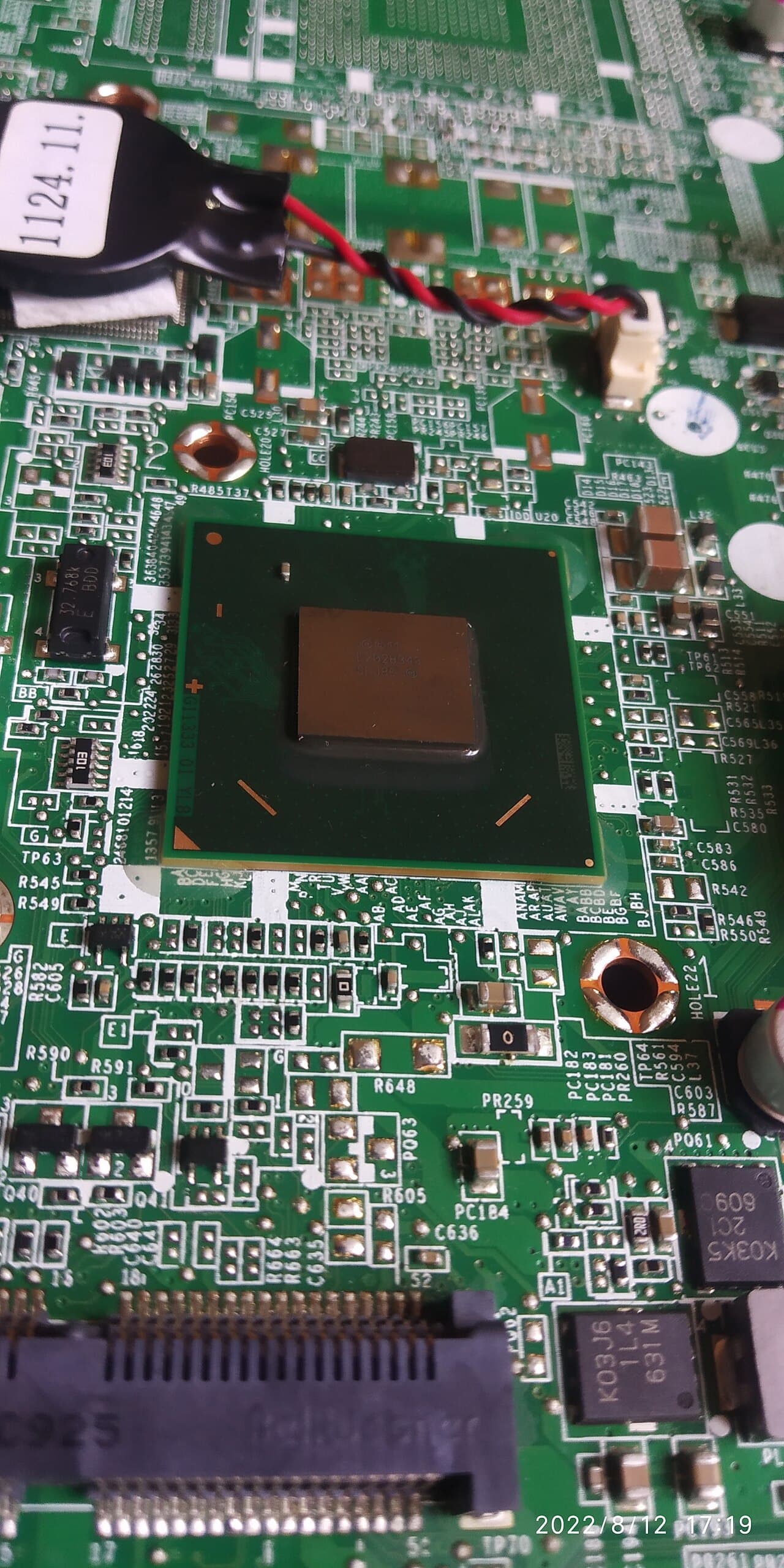
Find what is loading the processor
If the laptop is hot while you are barely using it, something is working in the background. Apple's advice is to use Activity Monitor to check CPU activity.[2] On Windows the equivalent is Task Manager. Look for malfunctioning processes that can put a significant load on the CPU and check for unexpected fan use.[2] A browser tab stuck on a script, a sync or backup that never finishes, or a crashed app that keeps retrying are common culprits. Closing the program often settles the fans within a minute or two.
If that does not do it, Apple's next suggestions are to close and open the lid on your laptop, or restart your computer.[2] On an Intel-based Mac, Apple's fan guidance also lists resetting the System Management Controller (SMC).[1] Also make sure that you’ve installed all Mac software updates,[2] and charge with the adapter made for the laptop: Apple's wording is Use only Apple-authorized power adapters.[2]
Dust and blocked vents
Over a few years, dust and pet hair collect in the vents and on the heat sink behind them. The fan then works harder and louder and the laptop still runs hot. Apple's own note on vents is that if your Mac laptop has ventilation openings, don't put anything into them.[2] So from the outside only: shut the laptop down, unplug it, and use short bursts of compressed air at the vents, holding the fan still so it does not overspin.
Opening the case is a different job. The fan, the copper heat pipe and the processor's thermal paste sit under the keyboard or bottom panel, and the battery is in there too. A shop can clean the fan, replace it, or reapply thermal paste on a laptop that has aged. That is the fix to expect when the laptop is clean on the outside, updated, and still hot.
What not to trust
Temperature apps can read alarmingly high without there being a fault. Apple points out that they don't measure the external case temperature,[2] and says: Never use third-party apps to diagnose possible hardware issues.[2]
Stop and call a pro if
- The fans run fast even when the laptop is idle and properly ventilated. Apple's wording for this case is: If the fans in your device run fast even when it isn't experiencing heavy usage and is properly ventilated.[1] After the restart and update steps above, that points to a fan, sensor or thermal-paste fault, and Apple's advice for ongoing temperature issues is: If you have issues with your Mac laptop’s operating temperature, contact Apple. Or visit an Apple Store or Apple Authorized Service Provider.[2]
- The laptop shuts itself off to cool down. A repeated shutdown means the protection is kicking in and a technician should check the cooling assembly.
- The case bulges, the trackpad lifts or the lid will not close flat. The U.S. Fire Administration's advice: Stop using lithium-ion batteries if you notice an odor, change in color, too much heat, change in shape, leaking or odd noises.[3] Unplug the laptop, leave it on a hard non-flammable surface away from anything that can burn, and take it in. Apple says the batteries should be serviced by Apple or an authorized service provider.[4]
- There is a burning smell, a hissing sound or smoke. Unplug it if you can do so safely, get away from it and call 911 if there is fire or smoke.
- You would have to open the case. Do not pry at the bottom panel or the battery yourself.
Getting help in Virginia
For what a fan, battery or board repair tends to cost, read how much laptop repair costs in Virginia, and if the machine is several years old, whether an old laptop is worth repairing. Browse more electronics repair answers or find electronics repair businesses near you. Back up your files before handing a hot laptop to anyone.
When you are ready, describe the problem once and local repair businesses quote it.
Common questions
- Is it normal for a laptop to get hot?
- Warm is normal, hot at idle is not. Apple says a Mac laptop can get warm during normal use, and that when the processor is busy the fans run faster and make a rushing-air sound that is a normal part of the cooling process. Heat that stays high when the laptop is doing almost nothing is the sign of a problem.
- Does using a laptop on my lap or in bed make it overheat?
- It can. Apple's guidance is that if you use your device on a soft surface like a couch, pillow, bed, or your lap, its fans might run more, and it says not to use a Mac laptop in your bed, on a pillow, or under bedding. Soft surfaces cover the intake and exhaust vents.
- Should I trust a temperature-reading app?
- Treat it with care. Apple notes that such apps do not measure the external case temperature, which is much lower than what they report, and says never to use third-party apps to diagnose possible hardware issues. Use them to spot trends, not to decide a part has failed.
- Can I clean the fan myself?
- Blowing short bursts of compressed air at the outside vents is low risk. Opening the case to reach the fan and heat sink is a repair: screws, ribbon cables and the battery are all in the way, and many modern laptops are built to be opened only by a technician. If cleaning the vents does not help, have a shop do it.
- How much does an overheating repair cost?
- It depends on the model and the cause. A fan or vent cleaning is a small job, while replacing the cooling assembly or reapplying thermal paste costs more, and a damaged board costs the most. Ask for a written diagnosis and price first; the cost guide linked below explains what drives the quote.
Sources
- [1] About fans and fan noise in your Apple product, Apple Support. Checked October 28, 2026.
- [2] Keep your Mac laptop within acceptable operating temperatures, Apple Support. Checked October 28, 2026.
- [3] Battery Fire Safety, U.S. Fire Administration, FEMA. Checked October 28, 2026.
- [4] Battery Service and Recycling, Apple Inc.. Checked October 28, 2026.
Want a pro to handle it?
Describe the job once. Licensed local businesses send quotes, and you pay only when you book one.
Get a quote for Electronics