Why won't my computer turn on?
Most desktops that will not turn on have a power problem outside the case: a loose cord, a switched-off power strip, a dead outlet or the switch on the back of the power supply. Check those first, unplug everything else, then look for any sign of life. If it powers up but will not start Windows, that is a different, software-side fault.
Free to ask. Local shops send quotes, and you pay only when you book one.
By Kasra Taheri, Founder, LoclisPublished
Researched and drafted with AI, then checked claim by claim against the sources listed below before it was published. Prices and rules change; the dates beside each source say when it was last checked.
Step by step
Read when to stop and call a pro, further down this page, before you start.
Step 1: Check whether it is really off
Look for any light, fan noise or drive sound, and move the mouse or press a key. A desktop in sleep can look dead.[2]
Step 2: Check the cord at both ends
Press the power cable firmly into the back of the computer and into the wall or power strip.
Step 3: Test the outlet
Plug a lamp or phone charger into the same outlet. If that does not work either, the outlet or its circuit breaker is the problem, not the computer.
Step 4: Skip the power strip
Plug the computer straight into a wall outlet, in case the strip or surge protector has failed.
Step 5: Flip the switch on the power supply
On the back of a tower, find the small rocker switch above the power cable socket and make sure it is on (I, not O).
Step 6: Unplug everything else
Unplug the computer, then disconnect USB drives, printers, cables and extra monitors, leaving only the power cable, keyboard and one display.
Step 7: Drain leftover power
With the cord unplugged, hold the power button for 20 seconds, then plug the cord back in and press the button once.
Step 8: Check the display
If fans spin and lights come on but the screen is black, reseat the monitor cable at both ends and try another cable or port.
Step 9: Let Windows repair itself
If you see the Windows logo or an error and it restarts in a loop, use the Windows Recovery Environment (WinRE) and try Uninstall updates under Troubleshoot > Advanced options.[1]
Step 10: Write down what happens
Note any lights, beeps and error text, so a shop can quote the right repair.
Start with the power, not the computer
A desktop that will not turn on usually has a problem outside the case: a loose cord, a power strip that is switched off, a dead outlet or the rocker switch on the back of the power supply. Those take five minutes to rule out and cost nothing, so do them in order before you suspect a part.
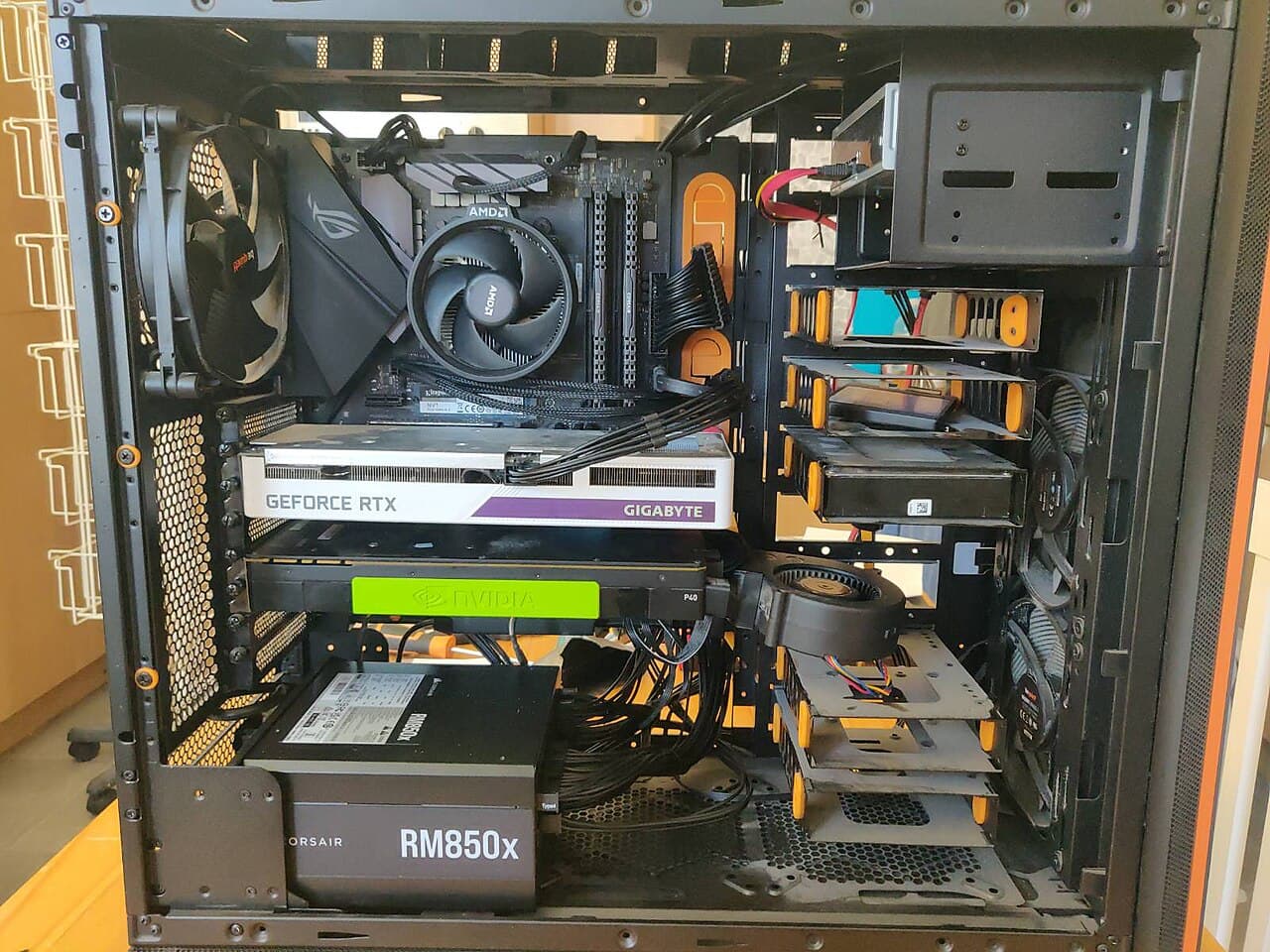
First, is it really off?
Look and listen for any sign of life: a light, a fan, a drive spinning. Move the mouse and press a key as well. Computers are meant to nap. ENERGY STAR advises that you set your computer to enter a low power sleep mode when the computer is inactive,[2] and a sleeping desktop with a dark monitor looks dead until you wake it. Also check the monitor has power and the right input selected.
Check the power path
Work from the wall inward:
- Push the power cable firmly into the back of the computer and into the outlet or strip.
- Test the outlet with a lamp or charger. If that is dead too, check your breaker panel.
- Plug the computer into the wall, bypassing the power strip or surge protector, which can fail even when the computer is fine.
- On the back of a tower, find the small rocker switch near the cord socket and set it to I (on).
An all-in-one or small-form-factor machine usually has an external power brick instead. Check the brick's light and both of its cable ends, and if you have the exact same model of adapter, try it.
Strip it down and reset
Unplug the computer and disconnect everything you do not need: USB drives, printers, card readers, extra monitors. A faulty accessory can sometimes stop a computer from starting. Leave only the power cable, a keyboard and one display.
Then hold the power button for about 20 seconds with the cord unplugged, to drain leftover charge, plug it back in and press the button once. If it comes to life, plug accessories back in one at a time to find the one that caused it.
What the symptom tells you
- Nothing at all, no light, no fan. Power is not reaching the board. After the checks above, the usual cause is a failed power supply.
- Lights and fans, but a black screen. Reseat the monitor cable at both ends, try another cable or port and another monitor if you have one. If it is still black, a shop can test memory and the graphics card.
- Turns on, then shuts off in seconds. Often overheating from clogged fans or a power supply that is failing under load.
- Starts, then beeps or shows an error. Write down the beeps or message. It tells the shop where to look.
- Windows logo, then a restart loop or blue screen. This is a software problem, and your files are probably fine.
If Windows will not start
When the computer powers up but Windows will not load, Microsoft's recovery options apply. If the problem started after a recent Windows update, uninstalling it might fix the issue.[1] From the Windows Recovery Environment, that is: In WinRE, select Troubleshoot > Advanced options > Uninstall updates.[1]
Be careful with a drive that is encrypted. If BitLocker is enabled on your device, you'll need your BitLocker recovery key to access most recovery options from WinRE.[1] Find that key before you start. Reset this PC reinstalls Windows and lets you choose to keep or remove your personal files,[1] so choose keep, and treat it as a last step.
Stop and call a pro if
- You smell burning, see smoke or scorch marks, or hear popping. Unplug it at once and leave it off.
- A power supply is the suspect. Do not open it, even unplugged; its internal parts can hold a charge. Do not open the case with the computer plugged in either.
- The computer is under warranty. Opening the case can void the cover; contact the maker or the shop that sold it.
- It still will not start after the power checks and reset above.
- The files matter and the drive is clicking, grinding or not detected. Stop powering it on, since each attempt can make a failing drive worse. See when to pay for professional data recovery.
If you do hire a shop, ask for a written diagnosis, and for each part and the labor itemized. Virginia's Consumer Protection Act lists misrepresenting that repairs have been performed or parts installed as a prohibited practice,[3] and a written quote makes that easy to check.
Getting help in Virginia
Typical repair prices are in how much computer repair costs in Virginia, and whether it is worth repairing an old desktop helps you decide when the quote is high. Browse more electronics repair answers or electronics repair services.
When you are ready, describe what the computer does once and local repair shops can quote it.
Common questions
- Why does my computer have lights but no picture?
- Usually the display, not the computer. Reseat the monitor cable at both ends, try another cable or video port, and check the monitor is on the right input. If the fans run and the screen stays black with a known-good monitor, a shop can test the graphics card and memory.
- Why did my computer stop working after a power outage or storm?
- A surge can damage the power supply, and a cheap power strip can fail even when the computer is fine. Plug the computer directly into a wall outlet first. If it is still dead, the power supply is the usual suspect, and replacing it is a routine shop job.
- My computer turns on, then shuts off right away. What is wrong?
- Common causes are overheating from dust-clogged fans, a failing power supply or loose memory. Clear dust from the vents with the computer unplugged, and if it keeps cutting out, have a shop test the power supply and temperatures.
- Will I lose my files if the computer will not start?
- Usually not. A dead power supply or a bad cord does not touch your files, and a shop can often read the drive in another machine. Software repairs like Reset this PC can remove them, so choose the keep-my-files option and ask for a copy first.
- Is it worth repairing a computer that will not turn on?
- Often yes, because a failed power supply or cord is cheap to fix. It depends on the machine's age and the quote. See whether it is worth repairing an old desktop before you pay.
Sources
- [1] Recovery options in Windows, Microsoft Support. Checked October 28, 2026.
- [2] Computers, ENERGY STAR, U.S. Environmental Protection Agency. Checked October 28, 2026.
- [3] Va. Code § 59.1-200, Prohibited practices, Code of Virginia, Virginia General Assembly. Checked October 28, 2026.
Want a pro to handle it?
Describe the job once. Licensed local businesses send quotes, and you pay only when you book one.
Get a quote for Electronics