How do I keep smart home devices secure and updated?
Turn on automatic updates in every device's app and on your router, give each account its own password of at least 16 characters, switch on multifactor sign-in, and change the router's default administrator password. Then review the list of devices every few months and remove the ones you no longer use.
Free to ask. Local shops send quotes, and you pay only when you book one.
By Kasra Taheri, Founder, LoclisPublished
Researched and drafted with AI, then checked claim by claim against the sources listed below before it was published. Prices and rules change; the dates beside each source say when it was last checked.
Step by step
Read when to stop and call a pro, further down this page, before you start.
Step 1: List what is connected
Open your router's app or device list and your smart home app, and write down every connected device and the account that controls it.
Step 2: Turn on automatic updates
In each device's app, look in the settings for "automatic updates" and switch them on.[1]
Step 3: Install what is waiting
Install any update a device or app is offering, rather than choosing "Remind me later".[1]
Step 4: Update the router
Check the router maker's website for the latest firmware version and install it, or turn on automatic updates if offered.[2]
Step 5: Change the router's default password
Replace the router's default administrator password with a strong one.[2]
Step 6: Use a unique long password per account
Give each smart home account its own password of at least 16 characters, and store them in a password manager.[3]
Step 7: Switch on multifactor sign-in
In each account's security settings, turn on two-factor or two-step sign-in.[4]
Step 8: Turn off remote router management
In the router's settings, turn off remote management unless you need it.[2]
Step 9: Remove what you no longer use
Delete old devices and accounts from your apps, and factory reset any device you give away.
The short routine
Keeping a smart home secure comes down to four habits: update everything, use a strong and different password for each account, add a second sign-in step, and secure the router that all the devices hang off. None of it needs tools, only an hour with your phone, and a quick review a few times a year.
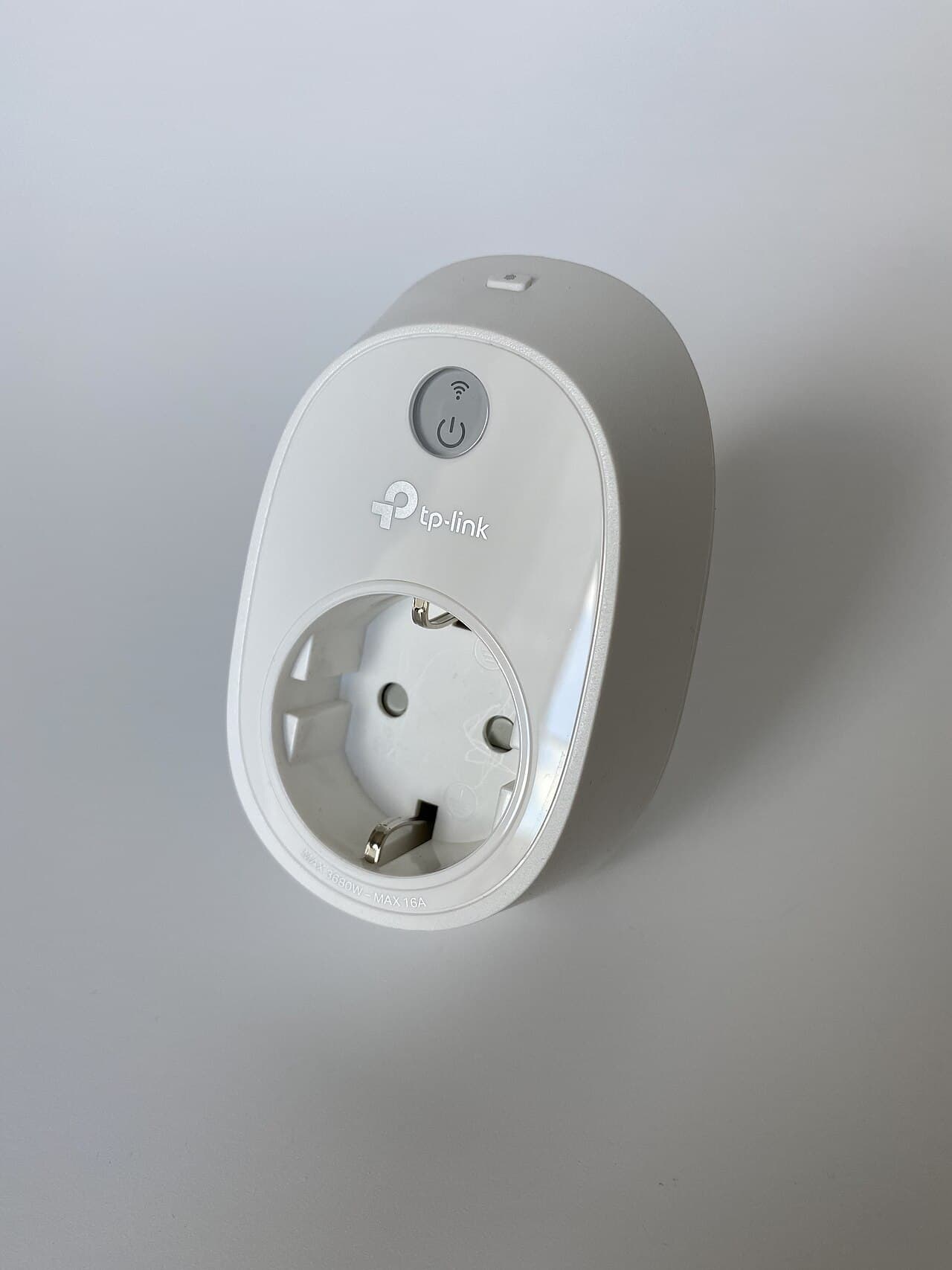
Take stock first
You cannot update what you have forgotten. Open your router's app or device list and your smart home app, and write down every plug, bulb, camera, lock and speaker, plus the account behind each. Old devices from a previous owner or a previous app are the ones most likely to be left unpatched.
Turn on automatic updates
CISA explains why: many software updates are created to fix security risks.[1] Waiting has a cost, so the agency's advice is to turn on the automatic updates feature, which you will usually find in a device's settings, possibly under Software or Security. Searching the settings for "automatic updates" is the quick route.[1]
Do it in each device's app, in your phone's settings for the apps, and on the router. If a notification offers an update, take it instead of choosing "Remind me later".
CISA's pro tip is: "Every product you use should have auto-updates turned on by default."[1] For a device with no auto-update option, the advice is to ask your provider why not.[1]
Secure the router
The router is the front door for every device. CISA notes that most network devices are pre-configured with default administrator passwords to simplify setup.[2] Those defaults are easy to find online, so change yours to a strong password in the router's settings.
Then keep it current. Check your router manufacturer's website to ensure you are running the latest firmware version.[2] Two more settings are worth a look: disable Universal Plug and Play (UPnP) when not needed,[2] and turn off remote management. Most routers offer the option to view and modify their settings over the internet,[2] which you rarely need at home. Router menus differ, so use the manual or your internet provider if you cannot find a setting.
Use long, unique passwords and a second step
CISA's rules for a strong password are three: long, random and unique. Long means at least 16 characters.[3] Unique means use a different strong password for each account.[3] Nobody remembers that many, which is what a password manager is for: a password manager is an easy-to-use program that generates, stores and even fills in all your passwords.[3]
Then add a second step. MFA provides us with extra security by confirming our identities when logging in to our accounts,[4] through a code texted to your phone or one generated by an authenticator app. Look in each account's security settings for two-factor or two-step sign-in. Do it first for the accounts that control cameras, locks and alarms.
Review a few times a year
Every few months, open the device list again. Remove devices you no longer use, delete their accounts, and remove old guests from shared access. If you sell or give away a device, factory reset it first so the next owner does not inherit your account.
Pair this routine with the basics in how to set up smart plugs and smart bulbs, and if devices keep dropping off the network, read why smart home devices keep disconnecting.
Stop and call a pro if
- A device is hardwired and needs replacing. Switches, hardwired thermostats and doorbell transformers involve live wiring, which is work for a licensed electrician.
- You think someone has taken over your accounts or cameras. Change the passwords from a trusted device, turn on the second sign-in step, and contact the device maker. If you see signs of a break-in, call the police.
- You want a cabled or segmented network. Running cable or designing a network across a large house is a job for a low-voltage or network pro.
- You are weighing the cost of help. See whether it is worth paying someone to set up a smart home and what smart home installation costs in Virginia.
Getting help in Virginia
Browse Security & Smart Home for local providers, or see more smart home answers. When you are ready, describe the job and local pros quote it.
Common questions
- Why do smart home devices need updates at all?
- Because many software updates are created to fix security risks, and a device that never updates keeps its known flaws. Updates also fix bugs and can improve performance. Automatic updates mean you do not have to remember.
- What if a device has no automatic update option?
- CISA's advice is to ask the maker why not, since it is your information they are putting at risk. Check the device's app for a manual update button, check the maker's support page, and think about replacing a device whose maker no longer supports it.
- How long should smart home passwords be?
- CISA recommends at least 16 characters, random, and different for every account. A password manager makes that practical, because it generates, stores and fills in the passwords for you.
- What is multifactor sign-in?
- An extra check when you log in, such as a code texted to your phone or one generated by an authenticator app. Even if someone learns your password, they still need the second step.
- Do I need a professional to secure my smart home?
- Not for the basics, which are all settings in apps and on your router. A pro is worth hiring for cabling, network design across a large house, or hardwired devices. See the sibling guides on whether setup is worth paying for.
Sources
- [1] Update Software, Cybersecurity and Infrastructure Security Agency. Checked October 28, 2026.
- [2] Home Network Security, Cybersecurity and Infrastructure Security Agency. Checked October 28, 2026.
- [3] Use Strong Passwords, Cybersecurity and Infrastructure Security Agency. Checked October 28, 2026.
- [4] Turn On MFA, Cybersecurity and Infrastructure Security Agency (CISA). Checked October 28, 2026.
Want a pro to handle it?
Describe the job once. Licensed local businesses send quotes, and you pay only when you book one.
Get a quote from a local pro