How do I set up smart plugs and smart bulbs?
Put the plug into an outlet, or screw the bulb into a lamp, then use the maker's app on your phone to add it to your home Wi-Fi, name it by room and set a schedule. Check the load rating on the label first, use the right bulb wattage for the lamp, and turn on automatic updates.
Free to ask. Local shops send quotes, and you pay only when you book one.
By Kasra Taheri, Founder, LoclisPublished
Researched and drafted with AI, then checked claim by claim against the sources listed below before it was published. Prices and rules change; the dates beside each source say when it was last checked.
Step by step
Read when to stop and call a pro, further down this page, before you start.
Step 1: Check the label and the lamp
Read the rating printed on the plug or bulb, and confirm the bulb's wattage matches what the lamp or fixture recommends.[1]
Step 2: Pick the spot
Choose a wall outlet or lamp within range of your Wi-Fi router, and keep anything that can burn away from lamps and light bulbs.[1]
Step 3: Plug in the device
Push the smart plug fully into the outlet, or screw the smart bulb into a lamp that is switched on at the lamp.
Step 4: Install the app and make an account
Download the maker's app on your phone, create an account with a long, unique password, and turn on the app's extra sign-in step if it has one.[3]
Step 5: Pair the device
Follow the app's prompts to add the device and enter your home Wi-Fi name and password when asked.
Step 6: Name it by room
Give each plug or bulb a plain name such as Living room lamp so voice assistants and the app can tell them apart.
Step 7: Test it
Switch the device on and off from the app, and from a voice assistant if you use one.
Step 8: Set a schedule or scene
Add a timer, a sunset schedule or a scene that turns several devices on together.
Step 9: Turn on automatic updates
Open the app's settings and switch on automatic updates, then install any update it offers.[2]
The short version
Smart plugs and smart bulbs are the easiest part of a smart home to set up yourself, because there is nothing to wire. A plug goes into an outlet and a bulb goes into a lamp. The work is in the app: adding the device to your Wi-Fi, naming it and giving it a schedule.
Most setups take a few minutes per device. The things worth getting right are the load rating, the bulb wattage, the account password and updates.
Before you buy or plug in
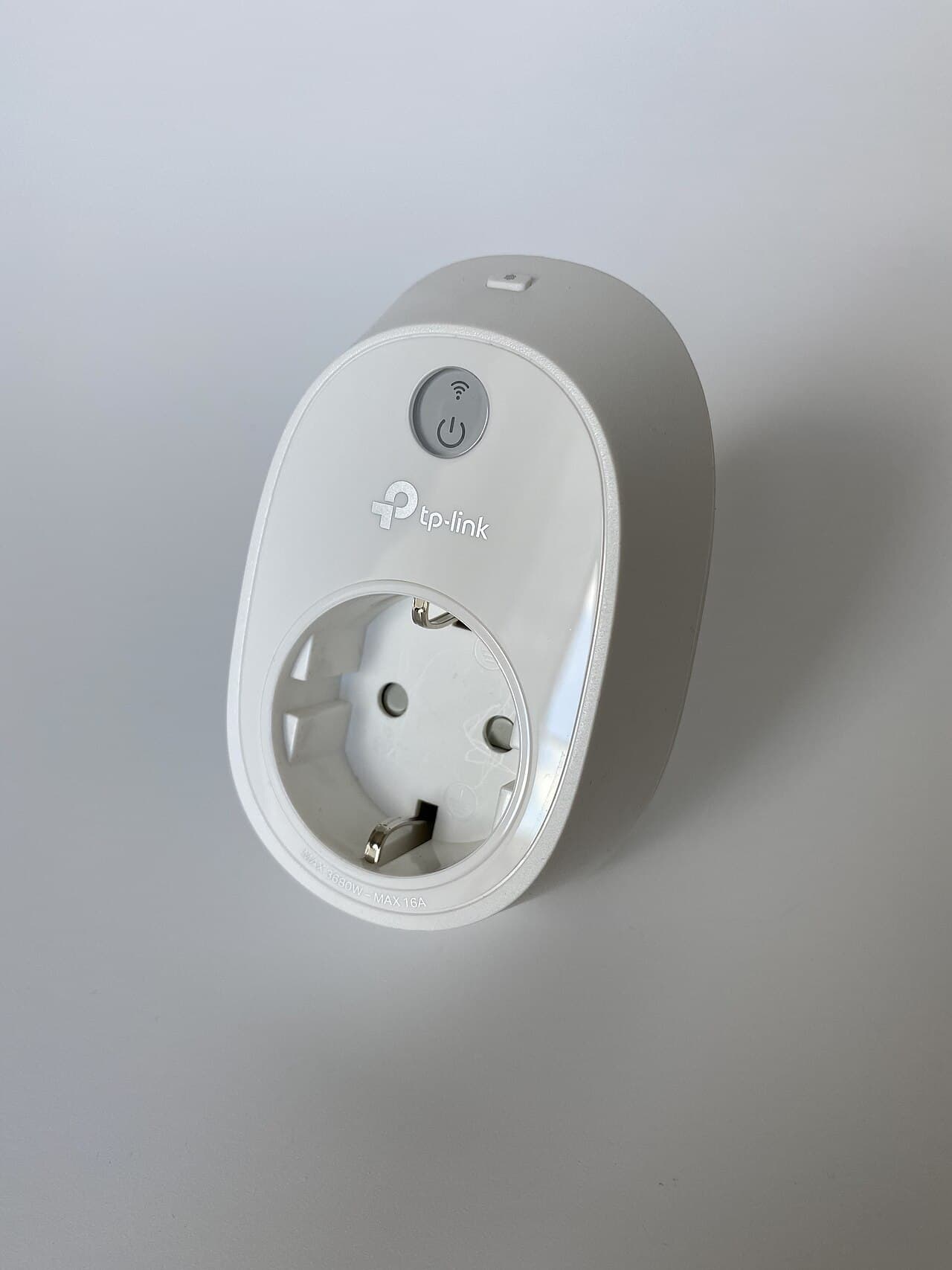
Read the label on the smart plug. It states the load it can carry, and your lamp, fan or small appliance has to fall inside that. A smart plug is for lamps, a coffee maker you only switch on and off, a fan, holiday lights and similar loads.
Do not use one for a heater or a major appliance. The U.S. Fire Administration says: "Always plug major appliances" directly into a wall outlet.[1] It adds: "Never use an extension cord with a major appliance." and warns that "The extension cord can overheat and start a fire."[1] A smart plug adds one more connection between the appliance and the wall, so treat it with the same caution.
Check the outlet itself. The Fire Administration says "Replace wall outlets if plugs do not fit snugly."[1] It also says "Insert plugs fully into sockets.", and its advice is "Do not overload outlets."[1]
For bulbs, "Use lightbulbs that match the recommended wattage on the lamp or fixture."[1] Compare the wattage marked on the lamp's socket with the actual wattage printed on the bulb's box. Also remember to "Keep anything that can burn away from lamps, light fixtures and light bulbs."[1]
Setting up the account and the app
Create the account in the maker's app before you pair anything. Treat it like any other account that can see when you are home.
CISA says a strong password is "At least 16 characters",[4] and that you should "Use a different strong password for each account."[4] Its advice is to "Create long, random, unique passwords with a password manager".[4] If the app offers a second sign-in step, turn it on. CISA describes it as "a code texted to a phone or one generated by an authenticator app".[3]
Pairing the device
Pairing differs between makers, but the pattern is the same. The app finds the new plug or bulb over Bluetooth or its own short-lived Wi-Fi network, asks which home network to join and then sends it the credentials. Keep your phone near the device and near the router while this happens.
If it fails, the usual causes are a weak signal at that outlet, a phone connected to a different network, or a typo in the Wi-Fi password. Moving the device closer to the router for setup, then relocating it, often solves it.
Make it useful
A device that only turns on from the app is a novelty. These are the settings that make it earn its place:
- Names. Use plain, unique names such as "Hall lamp" so a voice assistant never has to guess.
- Schedules. A lamp that comes on at sunset and goes off at bedtime is the most useful single automation for most households.
- Scenes. Group the living-room plugs and bulbs so one tap sets the evening lighting.
- Away mode. Randomised on and off times while you travel make a house look occupied.
Keep them updated
Smart devices run software, and the software gets fixes. CISA's guidance is: "Fix security risks by installing updates and turning on automatic updates."[2] It explains that "With automatic updates, our devices will install updates without any input from us as soon as the update is available".[2]
Open the app's settings after pairing and switch on automatic updates if they are not already on.
Stop and call a pro if
- You want to replace a wall switch or outlet with a smart one. That is wiring work in a live box, so hire a licensed electrician.
- An outlet is warm, loose, discolored or crackles when something is plugged in. Stop using it and have an electrician look.
- A plug or its cord is hot or smells of burning. Unplug it if you can do so safely and do not use it again.
- The breaker trips when the plugged-in load turns on. The circuit may be overloaded or faulty.
- You want hardwired fixtures, ceiling fans or switches controlled by the system. That belongs in a quote from a licensed contractor.
Getting help in Virginia
If you would rather have someone set up the whole home, read how much smart home installation costs in Virginia and whether it is worth paying someone to set up a smart home. Browse Security & Smart Home or see more smart home answers.
When you are ready, describe the job and local pros quote it.
Common questions
- Can I plug a space heater or a major appliance into a smart plug?
- Not unless the plug's label says it is rated for that load, and even then it is a poor idea. The U.S. Fire Administration says to plug major appliances directly into a wall outlet and never to use an extension cord with one, because the cord can overheat and start a fire.
- Do smart bulbs work in any lamp?
- Usually, if the base fits and the wattage is within what the lamp recommends. The U.S. Fire Administration advises using light bulbs that match the recommended wattage on the lamp or fixture. Enclosed fixtures and dimmer switches can cause trouble, so check the bulb's box.
- What if the device will not connect to my Wi-Fi?
- Move closer to the router for setup, make sure your phone is on the same network, and check that you typed the Wi-Fi password correctly. The app's setup screen says which kind of network the device supports.
- How strong should the account password be?
- CISA says a strong password is at least 16 characters, random and different for each account, and recommends a password manager to create and store them.
- Should I turn on automatic updates?
- Yes. CISA says to turn on automatic updates so devices install fixes as soon as they are available. Look for the setting in the device's app.
Sources
- [1] Appliance and electrical fire safety, U.S. Fire Administration, FEMA. Checked October 27, 2026.
- [2] Update Software, Cybersecurity and Infrastructure Security Agency. Checked October 27, 2026.
- [3] Turn On MFA, Cybersecurity and Infrastructure Security Agency (CISA). Checked October 27, 2026.
- [4] Use Strong Passwords, Cybersecurity and Infrastructure Security Agency. Checked October 27, 2026.
Want a pro to handle it?
Describe the job once. Licensed local businesses send quotes, and you pay only when you book one.
Get a quote from a local pro