Why do my smart home devices keep disconnecting?
Usually a weak or crowded Wi-Fi signal where the device sits, a router that needs a restart or an update, or a device that can only use the 2.4 GHz band. Check the signal at the device, restart the router, update its firmware, and move the device or add a mesh node if it is far from the router.
Free to ask. Local shops send quotes, and you pay only when you book one.
By Kasra Taheri, Founder, LoclisPublished
Researched and drafted with AI, then checked claim by claim against the sources listed below before it was published. Prices and rules change; the dates beside each source say when it was last checked.
Step by step
Read when to stop and call a pro, further down this page, before you start.
Step 1: Find the pattern
Note which devices drop and where they sit. If only the far ones drop, suspect signal; if all of them drop at once, suspect the router or the internet.
Step 2: Test the signal at the device
Check the Wi-Fi signal on your phone at the exact spot where the device sits, and look for obstructions and items that might cause interference.[1]
Step 3: Move closer to the router
If the signal is poor, move the device closer to a Wi-Fi access point.[1]
Step 4: Restart the router
Unplug the router for about 30 seconds, plug it back in, and give it a few minutes before judging the result.
Step 5: Update the router firmware
Check your router manufacturer's website for the latest firmware version and install it, or turn on automatic updates if the router offers them.[4]
Step 6: Check the band
If a device supports only 2.4 GHz, make sure the router is broadcasting a 2.4 GHz network the device can join.[2]
Step 7: Update the devices and their app
Open each app and install any pending device update, and switch on automatic updates.[5]
Step 8: Add coverage if the house is large
If one router cannot reach the far rooms, add a mesh system rather than a plain extender.[3]
Step 9: Re-add a stubborn device
Remove a device that keeps dropping from its app, then add it again from the spot where it will live.
Start with where and when they drop
Smart devices that keep disconnecting are usually fighting a weak or crowded Wi-Fi signal, an overdue router restart or update, or a band they cannot use. The fastest way to tell which is to notice the pattern. If only the devices in the far bedroom or the garage drop, it is signal. If every device drops at the same moment, the router or the internet connection is the problem.
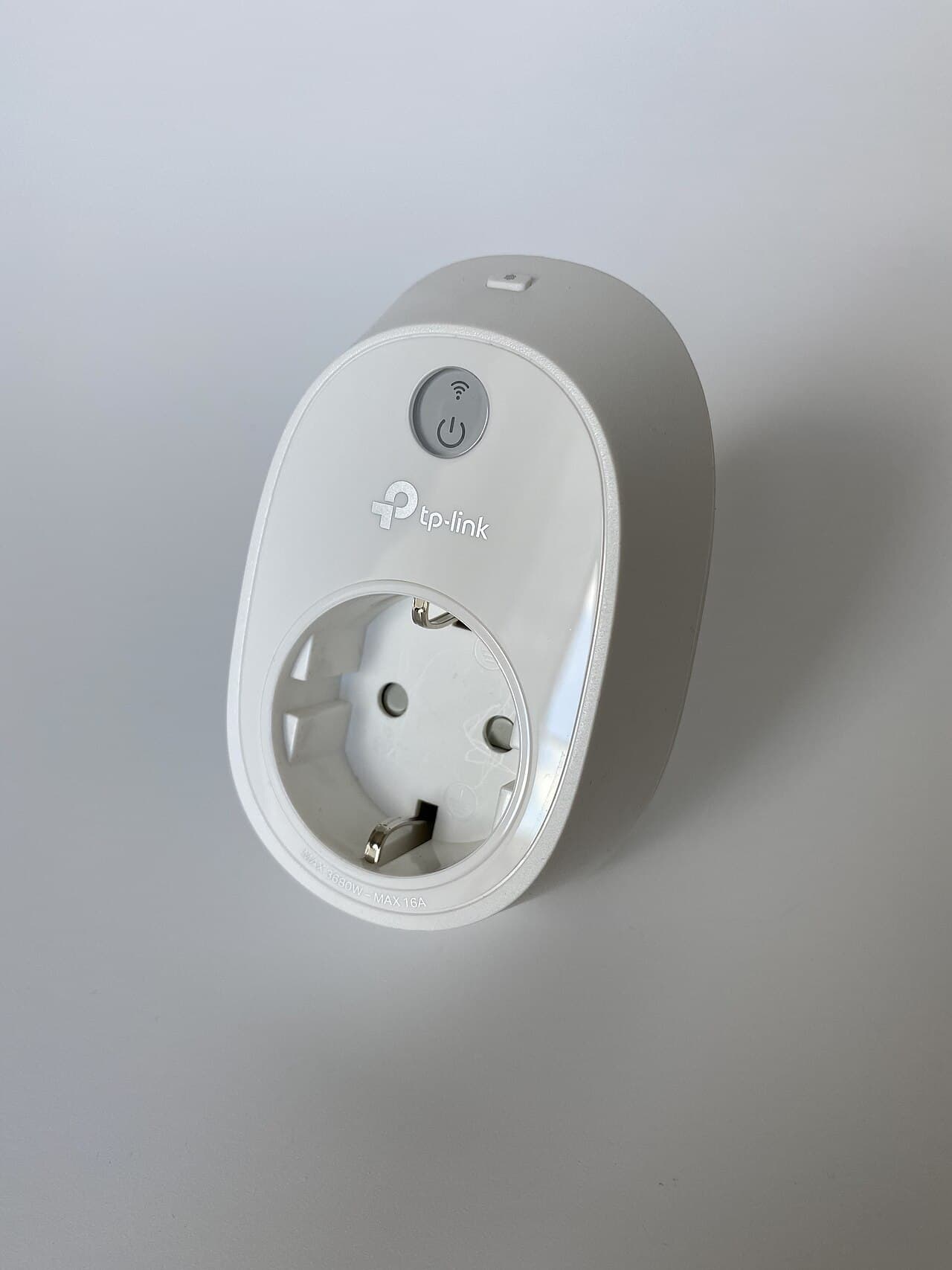
Check the signal where the device sits
A phone in your pocket in the living room tells you nothing about a plug behind a dresser in the basement. Stand at the device and check the signal there. When Ring explains how to place its cameras, the advice is to make sure that the location is free from obstructions and items that might cause interference.[1] Metal shelves, appliances and mirrors are the usual culprits, and so is a router tucked into a cabinet.
If the signal is poor, the plain fix is distance: if needed, move the device closer to a wifi access point.[1] When the device cannot move, move the router, or add coverage (below).
Construction matters too. NETGEAR's guide to choosing a mesh system asks, "Is your home built from signal-reducing dense materials like bricks?"[3] If it is, or the house is wide or spans several floors, one router in one corner is unlikely to reach every smart device.
Restart and update the router
A router left running for months can slow down or hand out stale connections. Unplug it for about 30 seconds, plug it back in and give it a few minutes. Many disconnects end there.
Then check for updates. CISA's advice is to check your router manufacturer's website to ensure you are running the latest firmware version.[4] Firmware updates enhance product performance, fix flaws, and address security vulnerabilities,[4] and some routers have the option to turn on automatic updates.[4] The same logic applies to the devices: technology providers issue software updates to "patch" security weak spots as quickly as they can,[5] and those updates also fix bugs. Open each device's app and install what is waiting.
Match the band
Wi-Fi comes in two common bands. Single-band Wi-Fi lets you connect to a 2.4 GHz signal.[2] Dual-band Wi-Fi lets you also connect to a 5.0 GHz signal for a faster, more stable connection.[2] Plenty of plugs, bulbs and sensors are 2.4 GHz only.
If your router merges both bands under one network name, some devices struggle to choose. Check your router settings for a separate 2.4 GHz network, and join the stubborn device to it. Keep the router's band settings in mind whenever you add a new device, and see how to set up smart plugs and smart bulbs for the pairing steps.
Extender or mesh
If one router cannot reach the far rooms, you have two options. Extenders merely boost and repeat WiFi signals, as NETGEAR puts it;[3] a mesh system uses several units that work as one network. For most multi-floor houses, a mesh system is the steadier choice. Read how to get good Wi-Fi in every room for placement, or whether to hire someone to set up a mesh system if you would rather not.
Re-add a device that keeps dropping
If one device is flaky and everything else is fine, remove it from its app, reset it per its manual, and add it again from the spot where it will live. Pairing from the final location avoids saving a weak connection.
Stop and call a pro if
- The plug will not stay put. A smart plug that wobbles or falls out of the outlet loses power, and the outlet is the problem. The U.S. Fire Administration's advice is to replace wall outlets if plugs do not fit snugly.[6] Have an electrician replace the outlet rather than forcing the plug in.
- An outlet or plug feels hot, smells burnt or crackles. Unplug the device if it is safe to do so, stop using that outlet and have an electrician look at it.
- A hardwired device keeps losing power. A wall switch, hardwired thermostat or doorbell that drops out may have a wiring fault. That is also an electrician's call.
- The whole connection keeps dropping. If your phone loses the internet too, the fault may be your service, not your devices. Call your internet provider.
- The house needs more than a few devices moved. If you want cabling, access points or a whole-home plan, a pro is a sensible hire. See whether it is worth paying someone to set up a smart home and what smart home installation costs in Virginia.
Getting help in Virginia
Browse Security & Smart Home for local providers, or see more smart home answers. When you are ready, describe the job and local pros quote it.
Common questions
- Why do only some of my smart devices drop off?
- Usually distance and walls. The devices farthest from the router, or behind dense materials such as brick, get the weakest signal and drop first. Test the signal on your phone at the device's exact spot, and move the device or the router's coverage closer before changing anything else.
- Why does everything disconnect at the same time?
- That points to the router or the internet connection rather than the devices. Restart the router, check whether your phone also loses internet, and see whether a firmware update is waiting. If the whole connection drops for hours, call your internet provider.
- Will a Wi-Fi extender fix it?
- Sometimes, but an extender only boosts and repeats the signal, while a mesh system is built to hand devices between units. If a house has several far rooms, a mesh system is usually the steadier fix. Placement of the extra unit matters more than the brand.
- Does my device need the 2.4 GHz band?
- Many do. Single-band devices connect only to a 2.4 GHz signal, while dual-band ones can also use 5 GHz. If a device will not stay connected, check its manual for the band it supports and make sure your router is broadcasting that one.
- Could a software update stop the disconnects?
- It can. Updates fix bugs and security holes, and a router or device running old firmware may drop connections that newer versions hold. Install pending updates for the router, the devices and their apps, then watch for a few days.
Sources
- [1] Positioning doorbells and security cameras, Ring support. Checked October 28, 2026.
- [2] Outdoor Cam, wireless outdoor security camera, Ring. Checked October 28, 2026.
- [3] Mesh WiFi Systems for Seamless Whole-Home Coverage, NETGEAR. Checked October 28, 2026.
- [4] Home Network Security, Cybersecurity and Infrastructure Security Agency. Checked October 28, 2026.
- [5] Update Software, Cybersecurity and Infrastructure Security Agency. Checked October 28, 2026.
- [6] Appliance and electrical fire safety, U.S. Fire Administration, FEMA. Checked October 28, 2026.
Want a pro to handle it?
Describe the job once. Licensed local businesses send quotes, and you pay only when you book one.
Get a quote from a local pro