Why is my Wi-Fi slow upstairs?
Usually because the router sits on another floor, and the signal has to pass through ceilings, walls and appliances to reach you. The 5 GHz band is faster but more sensitive to obstacles. Move the router to a central, open spot, angle its antennas about 30 degrees, then add a mesh unit or extender about halfway if the upstairs is still weak.
Free to ask. Local shops send quotes, and you pay only when you book one.
By Kasra Taheri, Founder, LoclisPublished
Researched and drafted with AI, then checked claim by claim against the sources listed below before it was published. Prices and rules change; the dates beside each source say when it was last checked.
Step by step
Read when to stop and call a pro, further down this page, before you start.
Step 1: Measure first
Run a speed test on your phone standing next to the router, then in the slow upstairs room, and write both numbers down.
Step 2: Check the router is in the open
Take the router out of any cabinet, away from microwave ovens, televisions and similar devices.[1]
Step 3: Move it toward the middle of the house
If its cable reaches, put it as close to the center of the home as you can, not against an outside wall.[1]
Step 4: Angle the antennas
If the router has adjustable antennas, tilt them to about 30 degrees to cover more than one floor.[1]
Step 5: Try the other band
If the upstairs device is on the 5 GHz network, test it on the 2.4 GHz network, which handles obstacles better.[2]
Step 6: Update the router
Check the manufacturer's website for the latest firmware, or turn on automatic updates if the router offers them.[4]
Step 7: Test again
Repeat the speed test in the upstairs room. If it is still weak, add a mesh unit or extender.
Step 8: Add a unit about halfway
Plug a mesh satellite or range extender into an outlet about halfway between the router and the weak area.[2]
The signal is losing a fight with your house
Slow Wi-Fi upstairs is usually a signal-path problem, not a problem with your internet plan. Common causes of weak Wi-Fi include physical barriers like walls and ceilings, interference from devices like microwave ovens and cordless phones, channel conflicts with nearby routers, and poor router placement.[2] A router in the basement, a closet or the far corner of the ground floor has to push through all of them to reach a bedroom.
Concrete is a particular problem: concrete walls in particular significantly reduce signal strength.[1]
Check the basics first
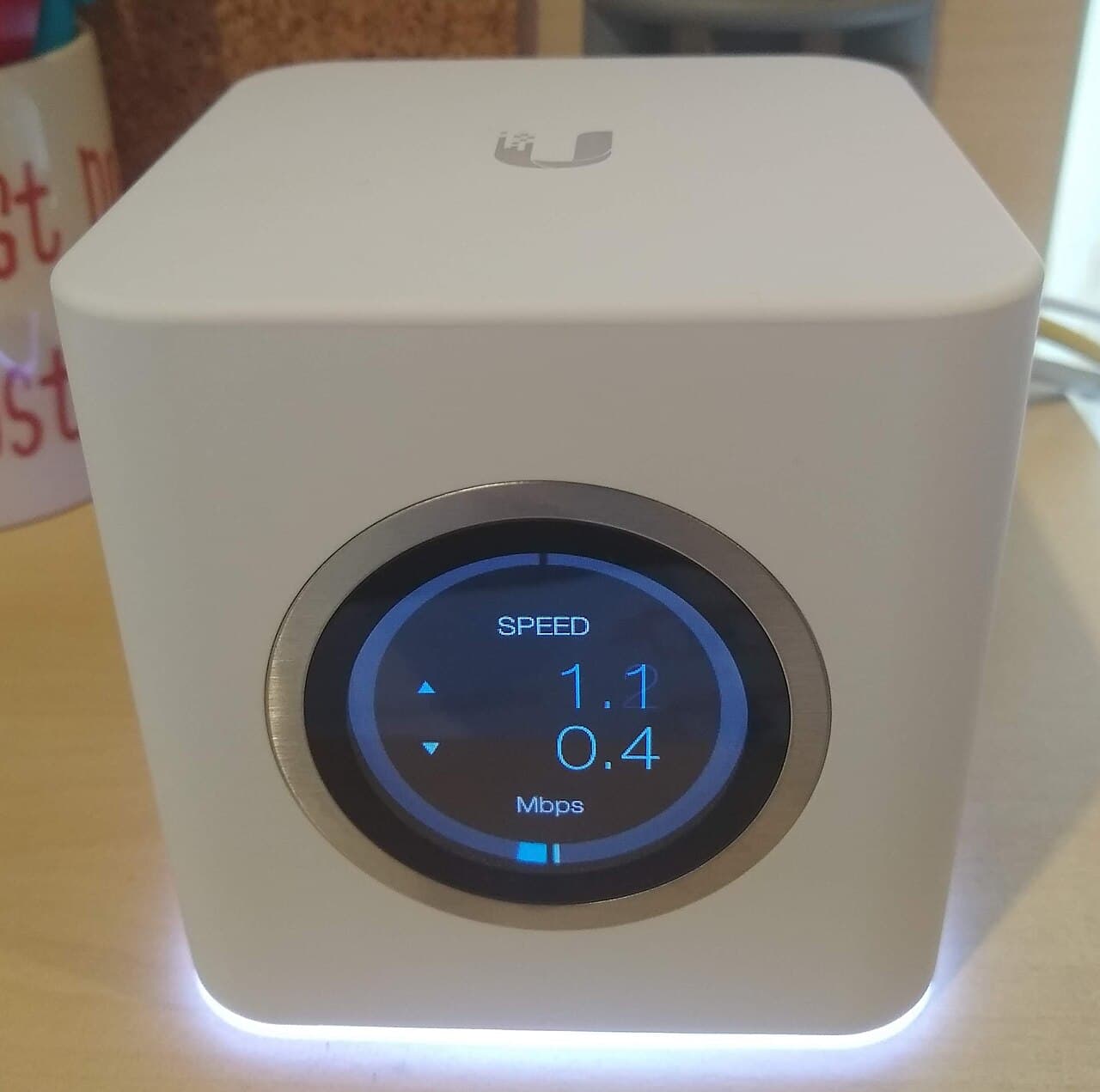
Start with a speed test on your phone, standing next to the router and then in the slow room. If the speed beside the router is also poor, the problem is the connection or the modem and your internet provider is the one to call. If it is good there and poor upstairs, work through the fixes below, which are all things you can do without tools.
Look at where the router sits. Placing the router inside a cabinet blocks the signal and reduces overall coverage.[1] Keep the router away from microwave ovens, televisions, weak current boxes, and similar devices.[1] A shelf in an open room is better than the back of an entertainment center.
Move it toward the middle
Keep your router as close to the center of the room as possible to distribute the signal evenly.[1] The same goes for the house: if your router is placed against an outside wall, the signal will be significantly weaker on the opposite side of your home.[1] A router in the front corner of the ground floor serves the upstairs back bedroom poorly.
You are limited by where the internet comes into the house, so only move it as far as the cable reaches. A longer Ethernet cable from the modem to a better spot is a plug-in change. Running cable through walls is a different job, covered below.
If your router has adjustable antennas, tilt them. If you need to go upstairs or downstairs in your home, and the wireless needs to cover different floors, we suggest that you turn on the antenna at an Angle of 30°.[1] Routers with built-in antennas have nothing to adjust.
Try the other band
Most routers broadcast on two bands. The 5 GHz Wi-Fi band offers faster speeds but shorter range, and is more sensitive to physical obstacles than the 2.4 GHz band.[2] That means upstairs, far from the router, the 5 GHz connection can be slower than the 2.4 GHz one even though it is the faster band on paper. Connect the device to each network in turn and test.
If you live in a crowded neighborhood, your neighbors' routers can add to the problem. Switching your 2.4 GHz router channel to 1, 6, or 11, and 5GHz channel to 36-48 can reduce interference in environments with many overlapping Wi-Fi networks.[2] The setting is in the router's app or settings page.
Update, then add a unit where it is weak
Check your router manufacturer's website for the latest firmware. Firmware updates enhance product performance, fix flaws, and address security vulnerabilities,[4] and some routers have the option to turn on automatic updates.[4]
If the upstairs is still weak, you need a second source of signal rather than a stronger router. For a single weak spot on the same floor, try a Range Extender. Place it about halfway between your router and the area with a poor signal to extend coverage precisely where you need it.[2] For a whole floor, one maker's guidance is that for whole-home coverage across multiple rooms or floors, a Deco Mesh Wi-Fi System is the best choice.[2]
With a mesh kit, the setup is simple. The WiFi mesh router must be physically connected to your modem.[3] NETGEAR advises that satellites should be placed within 25-50 feet from the router or at least one other satellite.[3] In practice that often means a satellite on the stair landing or in the hall just above the router, in the open. The full walk-through is in how to get good Wi-Fi in every room.
Stop and call a pro if
- You want cable run through walls, ceilings or between floors for a wired connection upstairs. That is cabling work for a contractor, not a plug-in change.
- The signal is poor even next to the router, or the whole connection drops. That points to the modem or the line, and your internet provider fixes it.
- A device only loses connection when something else turns on, or an outlet is warm, loose or discolored. That is an electrical problem, not a Wi-Fi one.
- You are unsure whether a mesh system is worth it. Read whether to hire someone to set up mesh Wi-Fi first.
Getting help in Virginia
For costs, see what whole-house Wi-Fi costs to install in Virginia. If smart devices are the ones dropping, read why smart home devices keep disconnecting. Browse security and smart home pros or more smart home answers.
When you are ready, describe your Wi-Fi problem once and local pros quote it.
Common questions
- Is it the router or my internet plan?
- Test next to the router. If the speed there is also far below what you pay for, the problem is the connection or the modem, and your internet provider is the one to call. If it is fine beside the router and poor upstairs, the cause is the signal's path through the house.
- Why is my phone fast in one upstairs room and slow in another?
- Walls, ceilings and appliances in the signal's path differ from room to room. Common causes of weak Wi-Fi include physical barriers like walls and ceilings and interference from devices like microwave ovens and cordless phones, so a room directly above the router can be better than one at the far end of the hall.
- Should I use the 2.4 GHz or 5 GHz network upstairs?
- Try both. The 5 GHz band is faster but has shorter range and is more sensitive to obstacles, so far from the router the slower 2.4 GHz band can end up the better connection. Close to the router, 5 GHz is usually the faster one.
- Will a range extender fix it?
- It can, for one weak spot. It works best placed about halfway between the router and the weak area, where it still gets a good signal to repeat. For a whole upstairs, a mesh system is the better fit.
- Do I need an electrician or a cabling pro?
- Not for any step here, which are all plug-in changes. A cabling job through walls or floors is different: that is work for a licensed contractor, and the sibling guide on getting good Wi-Fi in every room covers when it is worth it.
Sources
- [1] Router Antenna Position: Tips for the Best Wi-Fi Signal, TP-Link. Checked October 28, 2026.
- [2] How to Improve Your Wi-Fi Signal and Wireless Range, TP-Link. Checked October 28, 2026.
- [3] Mesh WiFi Systems for Seamless Whole-Home Coverage, NETGEAR. Checked October 28, 2026.
- [4] Home Network Security, Cybersecurity and Infrastructure Security Agency. Checked October 28, 2026.
Want a pro to handle it?
Describe the job once. Licensed local businesses send quotes, and you pay only when you book one.
Get a quote from a local pro